
See how your endpoint resolves a request
An endpoint with three responses, two of them with rules, a proxy setting and a delay is easy to build and hard to keep in your head. The Flow tab draws it for you: a diagram of every decision the mock engine takes for a request to this endpoint, in the exact order it takes them, ending in the response that gets served.
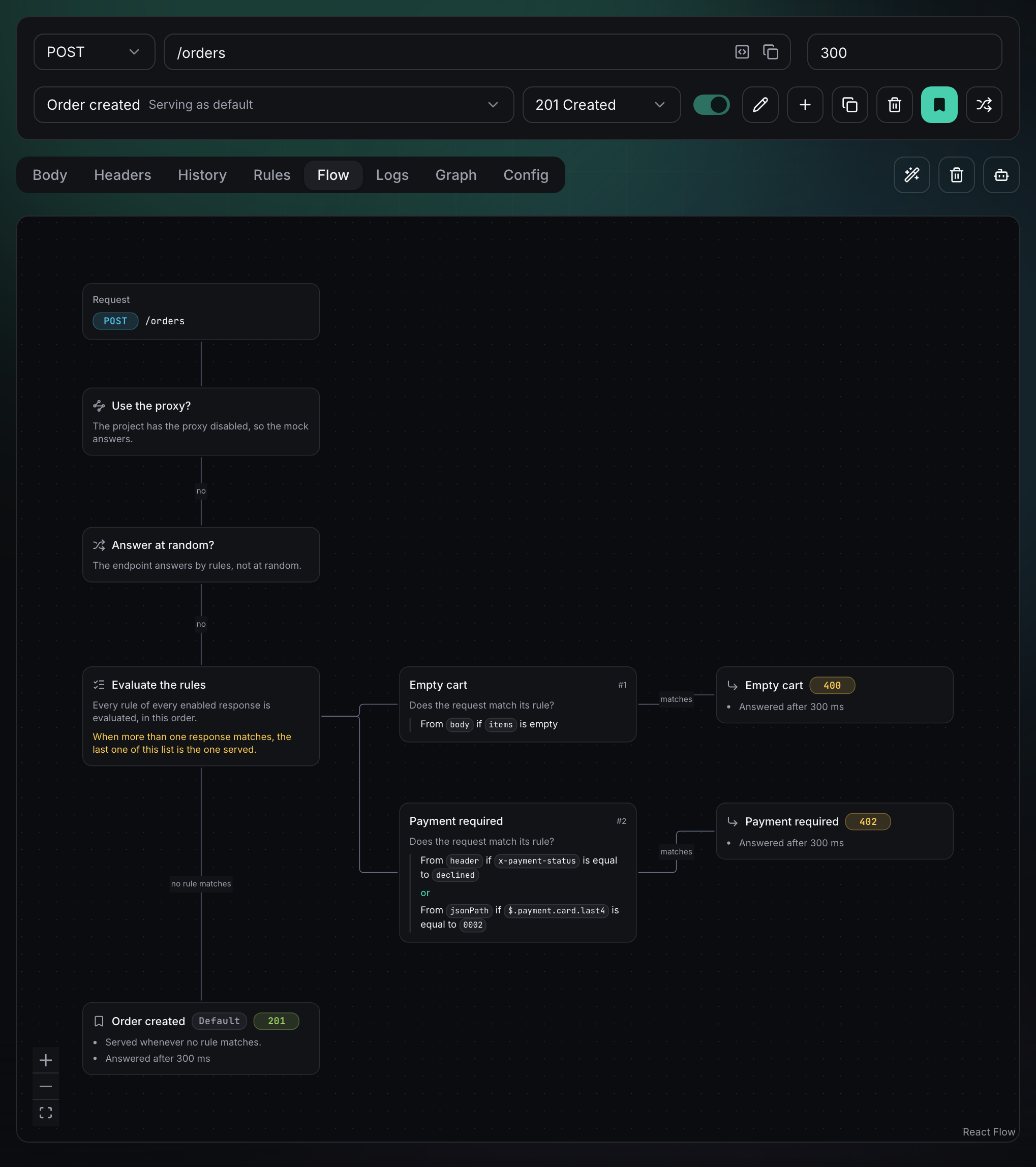
It answers the questions you would otherwise answer by trial and error: which response is this request getting, why that one and not the other, and which parts of the endpoint your current configuration cannot reach at all.
Open the Flow tab
Select an endpoint and click Flow, next to the Rules tab. The diagram is read-only: drag the canvas to pan, use the wheel to zoom, and the controls in the bottom-left corner to zoom in, zoom out or fit the whole diagram back into view. It is always built from the current configuration of the endpoint, so a rule you add in the Rules tab shows up in the diagram straight away.
The tab is available on every plan and for every HTTP endpoint. WebSocket endpoints do not have it — their resolution has no proxy, no random pick and no default response to draw.
The order the mock engine follows
The diagram is not a generic drawing of "how mocking works": it is the real resolution order, with your values in it. The column on the left is the path a request walks from top to bottom, and every branch to the right is a way out of that path — once a request leaves the spine, it is answered.
- Use the proxy? The proxy is checked before anything else. The card tells you which setting decides it: the Proxy configuration of the endpoint, or the project when the endpoint is left on Use inherited settings from project. If the request is forwarded, nothing else in the diagram happens: no rule is evaluated, and neither the delay nor the request log apply to that branch.
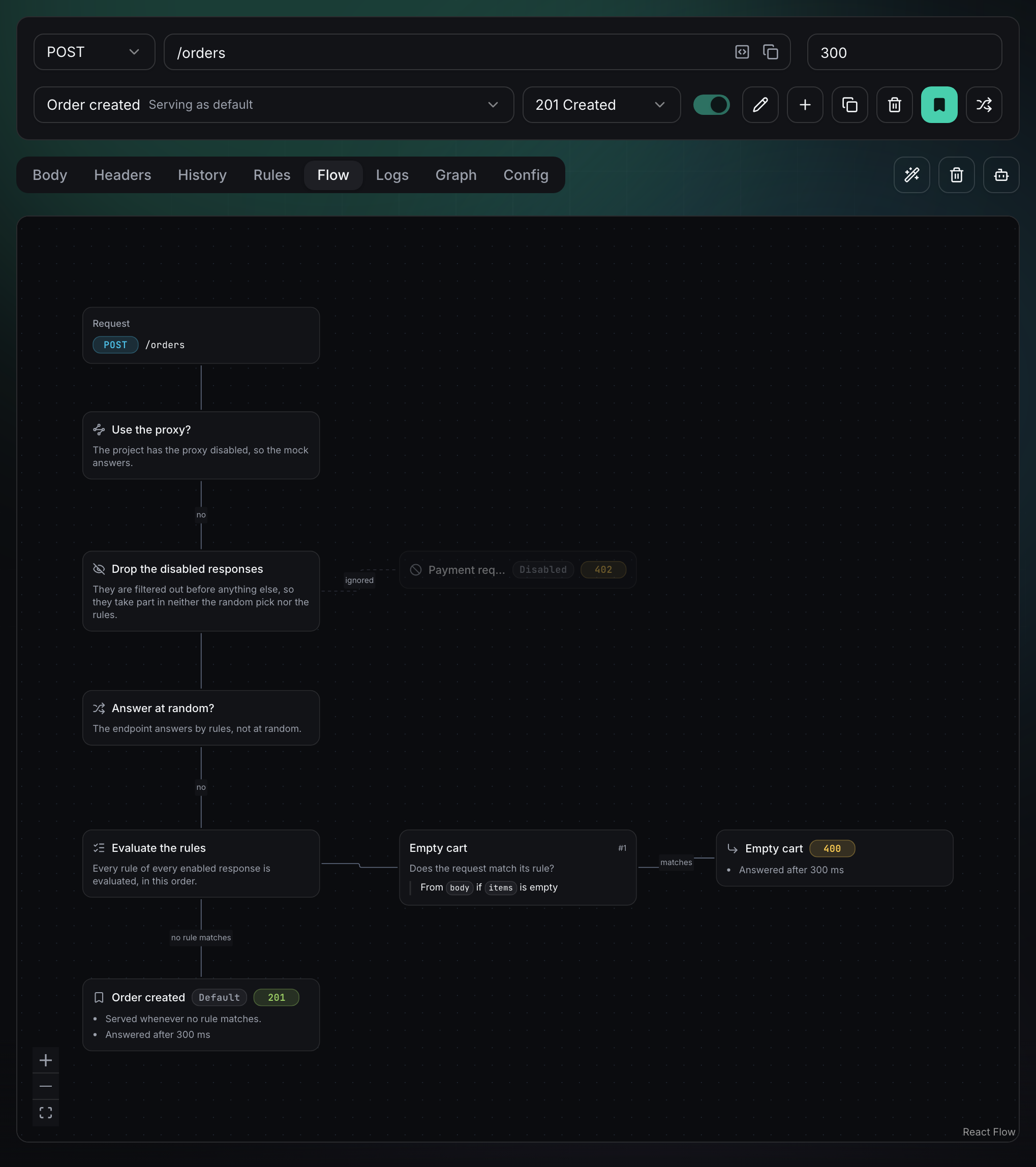
- Drop the disabled responses. A disabled response is filtered out before anything else, so it takes part in neither the random pick nor the rules. This card only appears when the endpoint has at least one disabled response.
- Answer at random? Random response is not a tie-break: while it is on, one of the enabled responses is picked at random and no rule is evaluated at all.
- Evaluate the rules. One question per enabled response that has rules, in the order of the response list. Each question branches to the response it serves when the request matches.
- The default response. The last card of the spine: the response served when no rule matched.
What each card tells you
- Request — the method and the path of the endpoint, where every request enters.
- Questions (Use the proxy?, Answer at random?, Evaluate the rules) — the decision, plus the answer for this endpoint right now. The project has the proxy disabled, so the mock answers is a different sentence from This endpoint always goes through the proxy, whatever the project says, and the difference is where you would go to change it.
- Rule checks — one per response with rules, numbered
#1,#2… in evaluation order. The conditions are written with the same sentences as the Rules tab (From header if x-payment-status is equal to declined), including AND/OR groups. Long values are truncated to keep the card readable — open the rule to see the whole thing. - Outcomes — the response that answers, with its status code coloured by family (green for 2xx and 3xx, amber for 4xx, red for 5xx), a
DefaultorDisabledbadge when it applies, and the delay of the endpoint as Answered after 300 ms.
When two responses match the same request
Rules are not exclusive: a request can match the rules of several responses at once. When that happens the last matching response of the list is the one served, and the Evaluate the rules card says so whenever more than one enabled response has rules — that is the case the diagram exists for, and the one that costs the most time to debug from the outside.
The rules of the default response are evaluated like everyone else's. Being the default does not exempt a response from its own rules; it only means it also answers when nothing matched.
Branches your configuration cannot reach
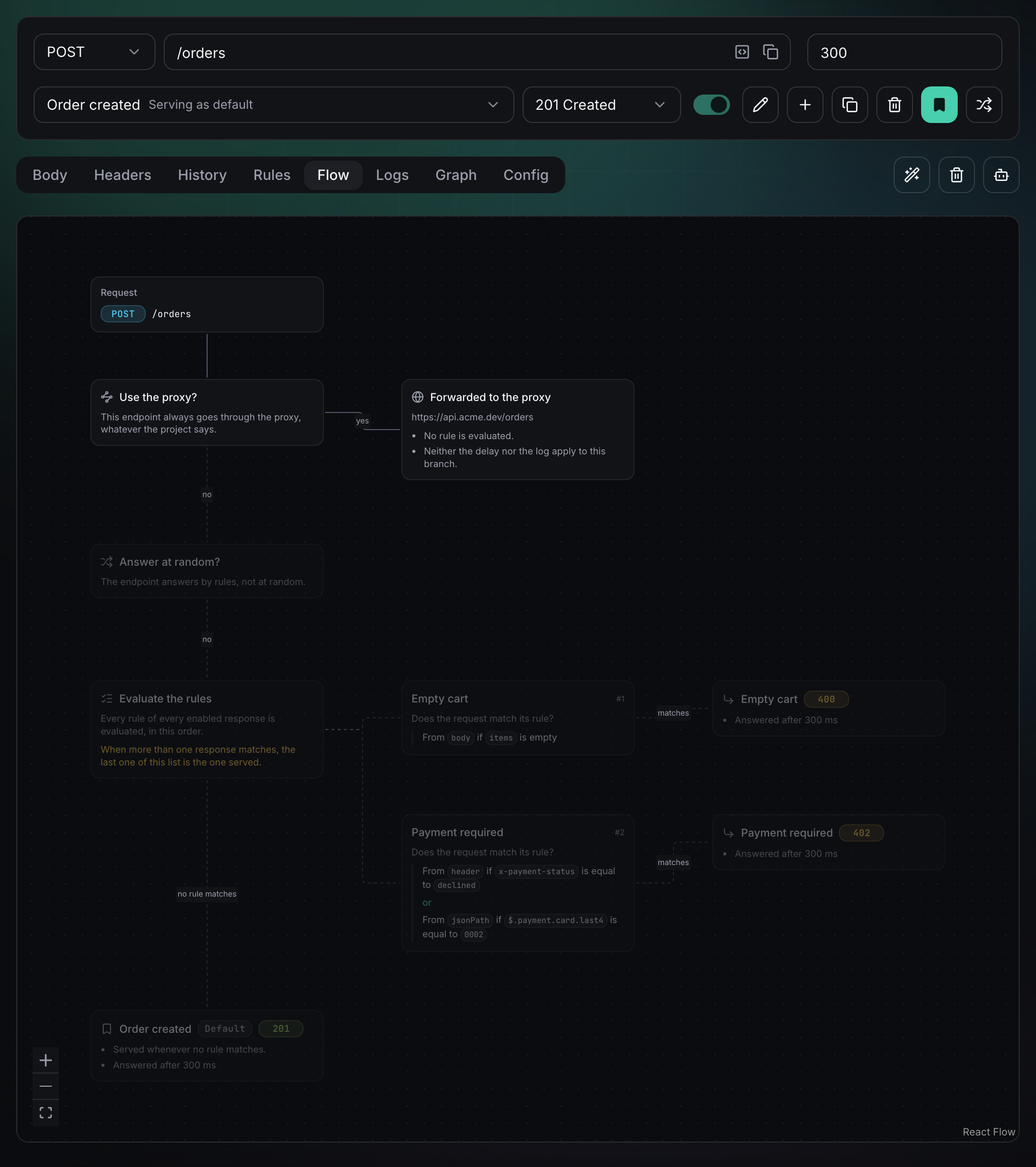
Cards and connections that today's configuration can never walk are dimmed, and their connections turn dashed. Nothing is hidden: you still see everything the endpoint has, and you see at a glance that it is not being used.
With the proxy on for this endpoint, the whole mock is dimmed — the responses and their rules are still configured, they simply never run:
A disabled response gets its own dimmed card behind the Drop the disabled responses question, connected with an ignored label, so a response you switched off weeks ago never becomes a mystery:
Turning on Random response dims the rule branch the same way, for the same reason.
Jump from the diagram to the rules
Every card that has a response behind it is clickable: click it and Mockfly selects that response and opens its Rules tab, ready to edit. Reading the diagram and fixing what it shows you are the same gesture.
Good to know
- An endpoint without a default response ends in a No default response card instead. Set one from the response actions so unmatched requests have somewhere to land.
- If the endpoint goes through the proxy and the project has no proxy URL configured, the proxy card warns you that the request answers
500. - The diagram covers how the response is chosen. What happens to the body afterwards — Faker.js placeholders, body substitution, custom headers — applies to whichever response the diagram ends on.
- To check what actually happened on a real call instead of what would happen, use the endpoint logs.